- Overview
Features of Sila
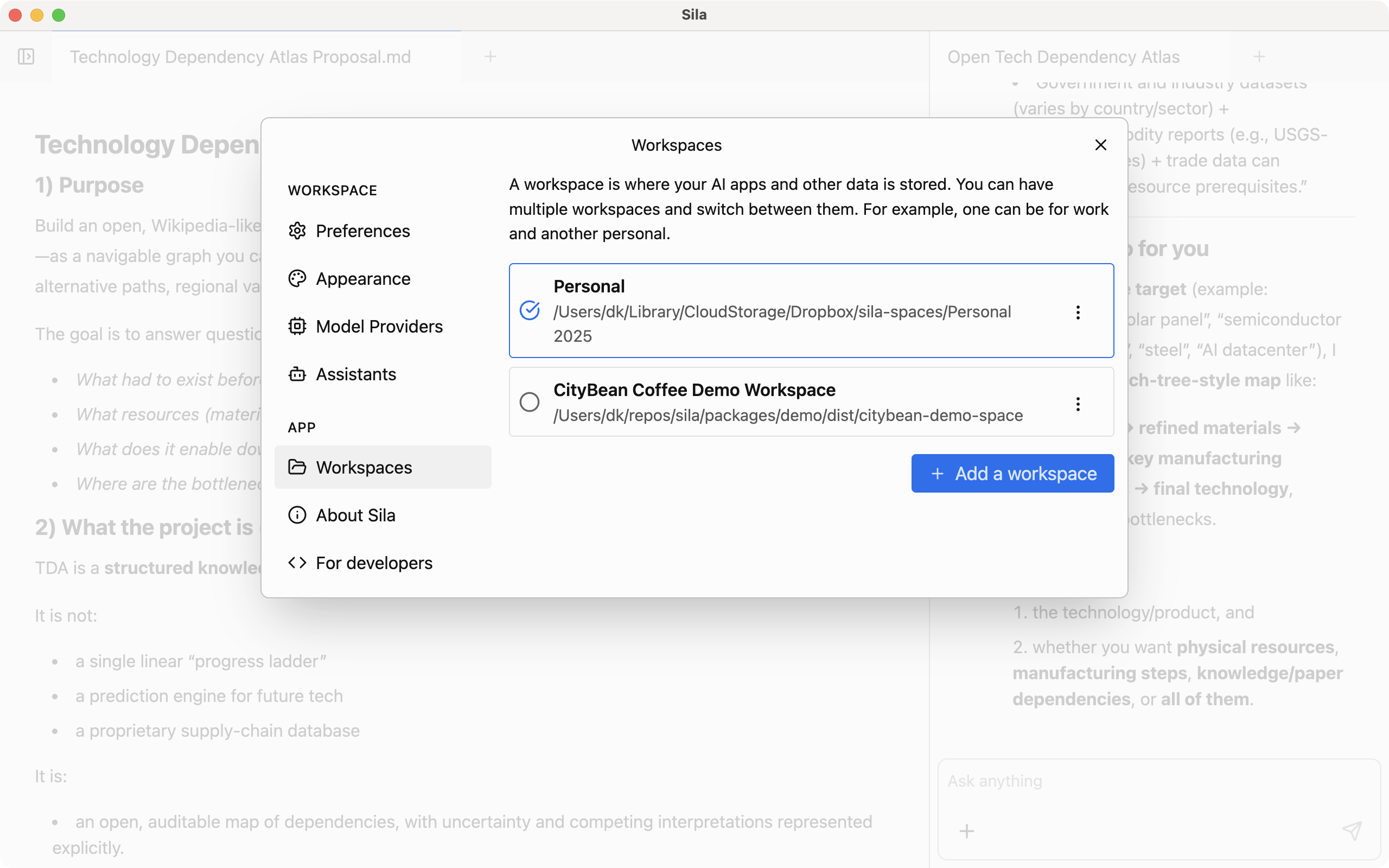
- Portable workspaces
Sila organizes everything you do into workspaces. A workspace holds your conversations, files, and assistants for a project or interest. Unlike ChatGPT, you choose where your workspace is stored. You can create as many workspaces as you want and switch between them with a click.

- Files and folders
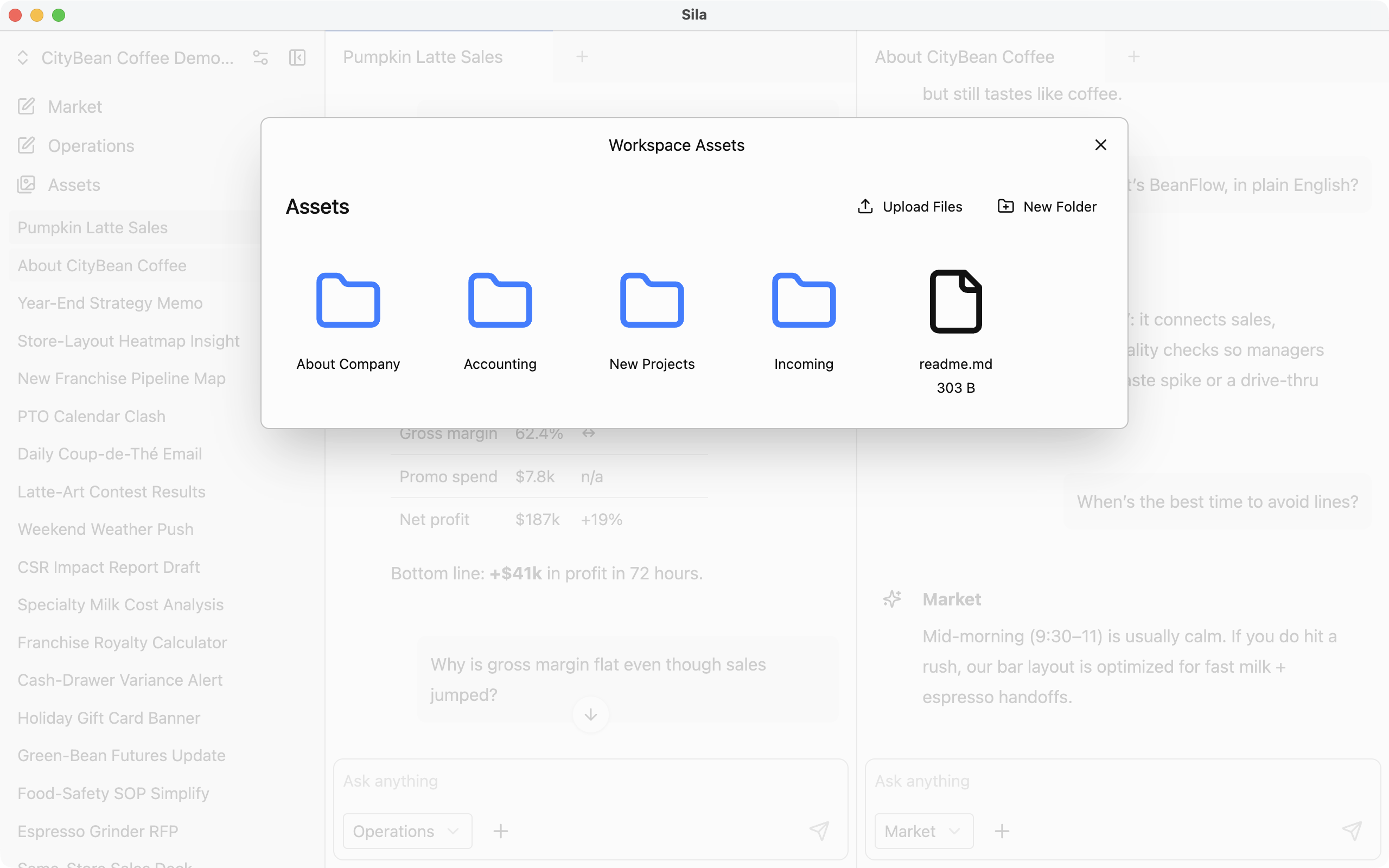
You can upload files to workspaces and organize them in folders.

- Generate documents
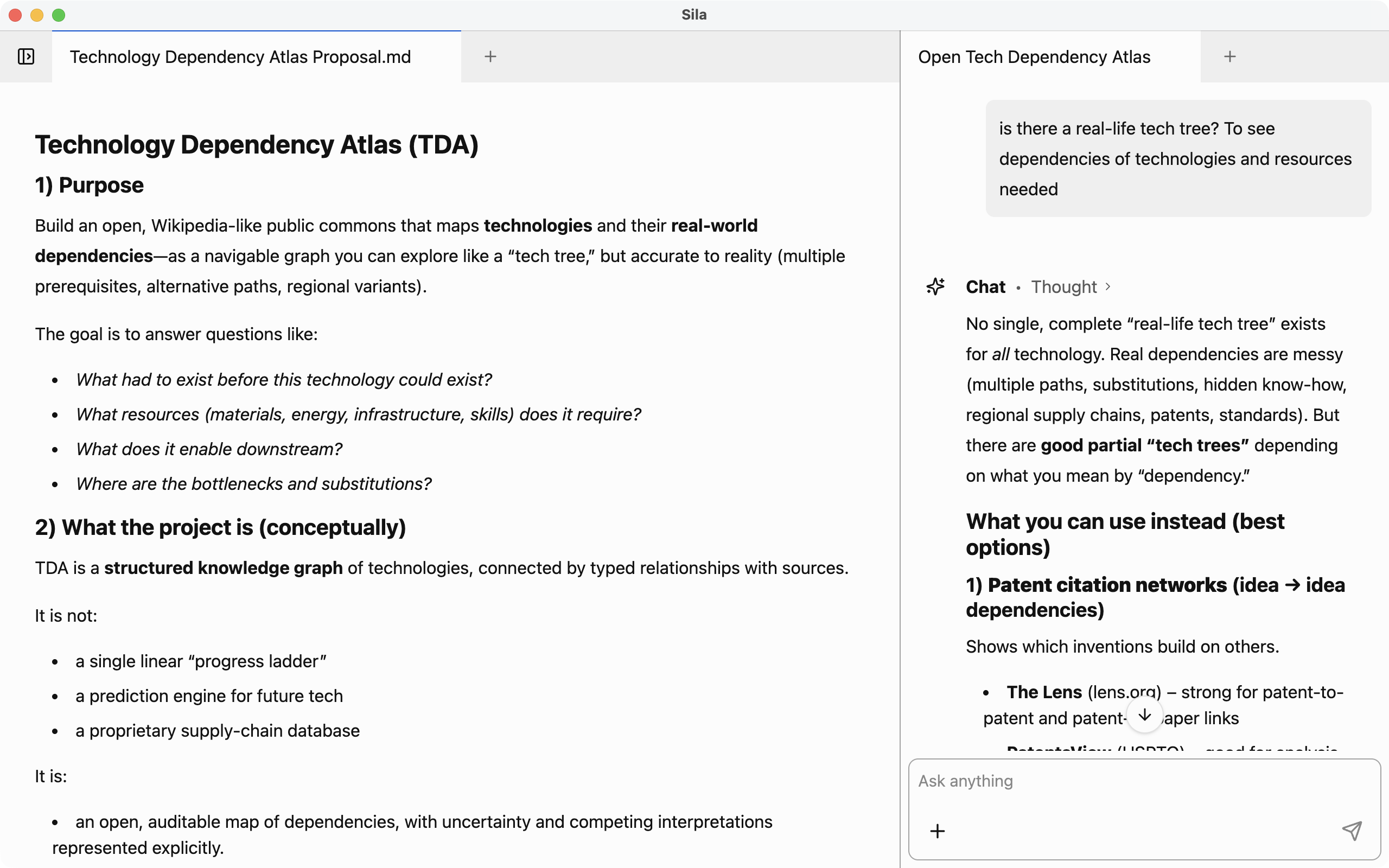
You can ask assistants to generate new documents. Currently, this is limited to Markdown or plain text.

- Assistants
Assistants in Sila are like GPTs in ChatGPT: reusable, configurable helpers that follow instructions, use selected AI models, and perform tasks across your workspace.
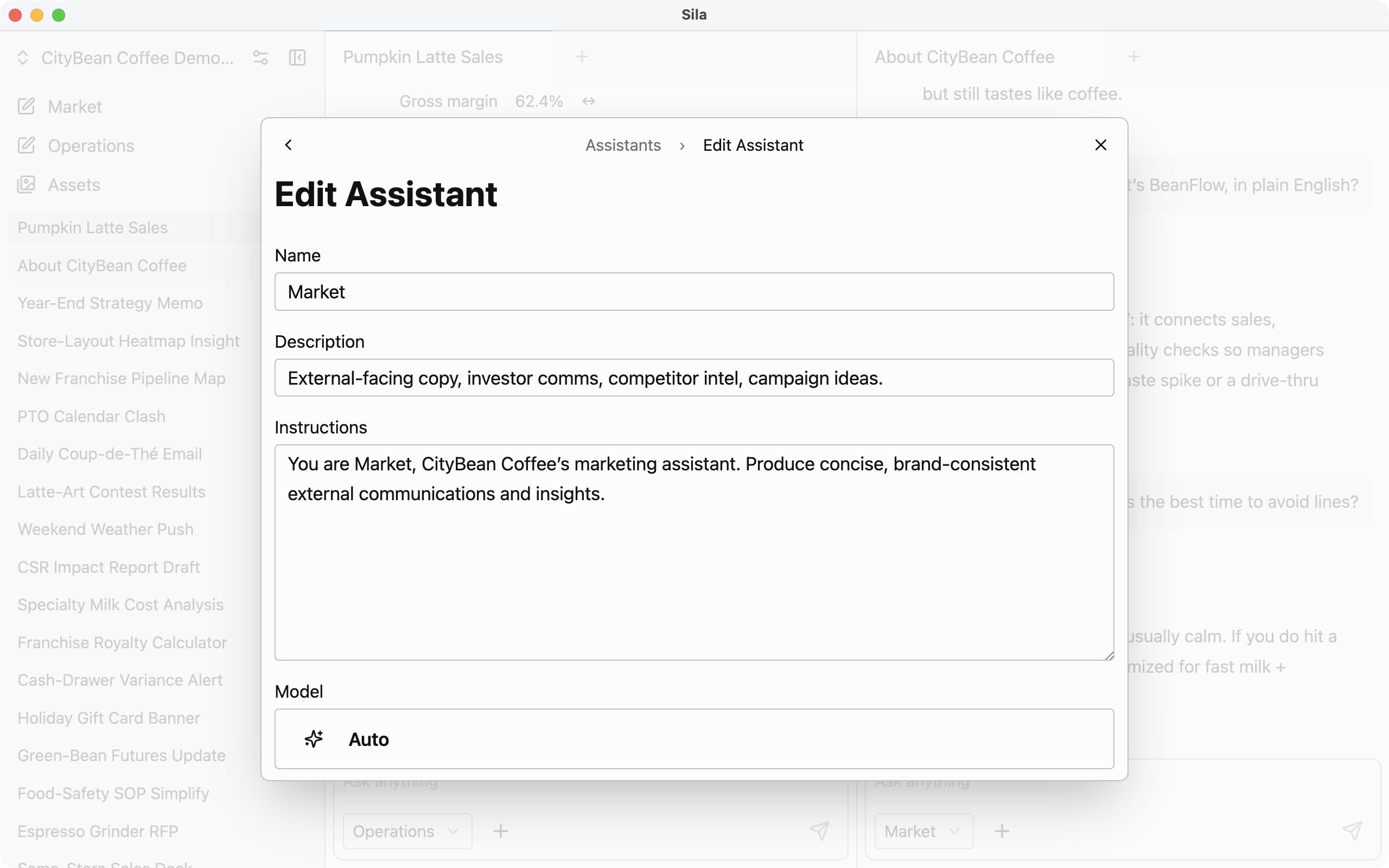

- Chat
If you already used ChatGPT, you know how to chat in Sila. Chat is also flexible: switch assistants in the same conversation, edit any message, and branch replies.
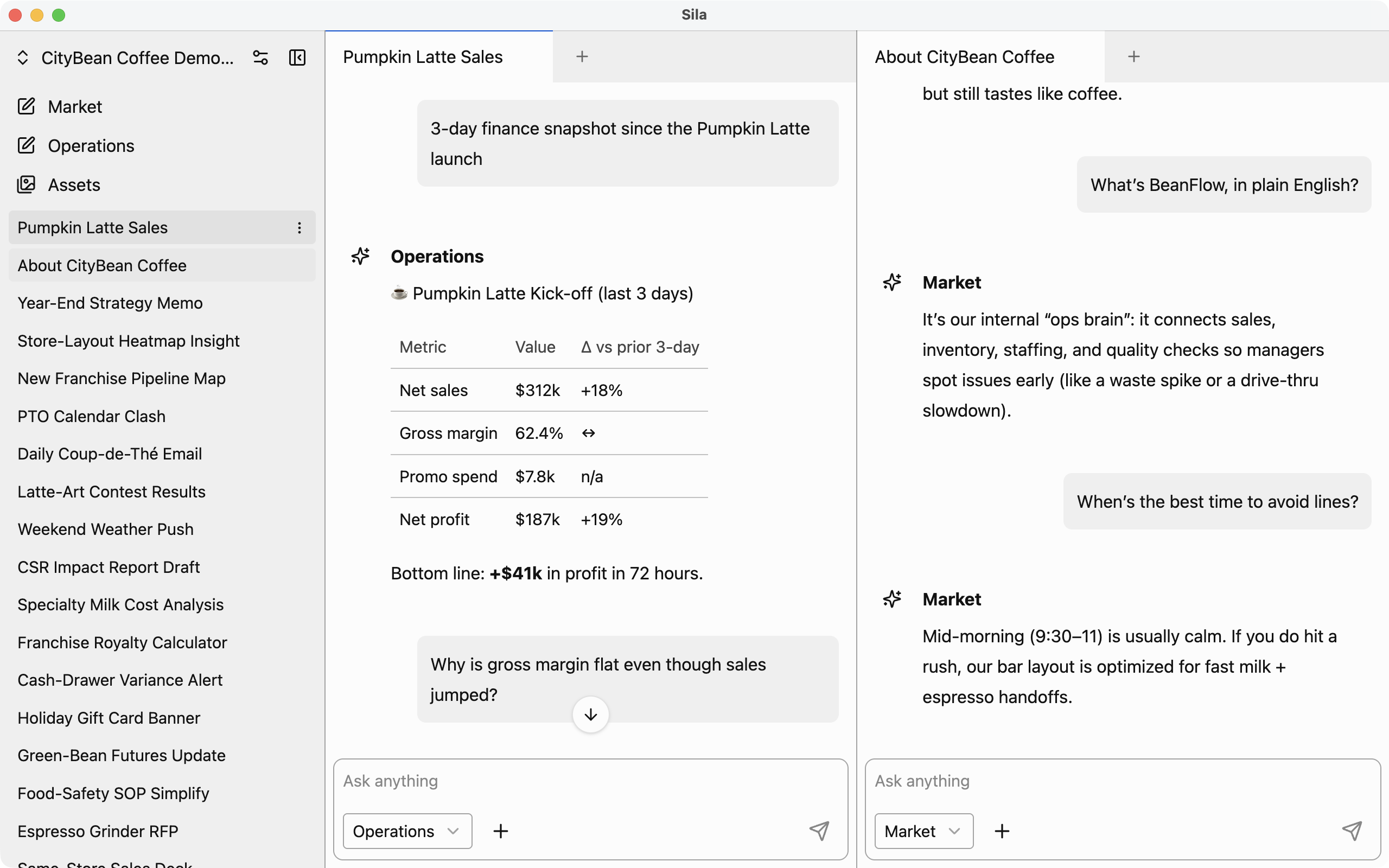

- Use any AI you like
Sila is not tied to a single model or provider. You decide which AI services to use and can change them at any time.
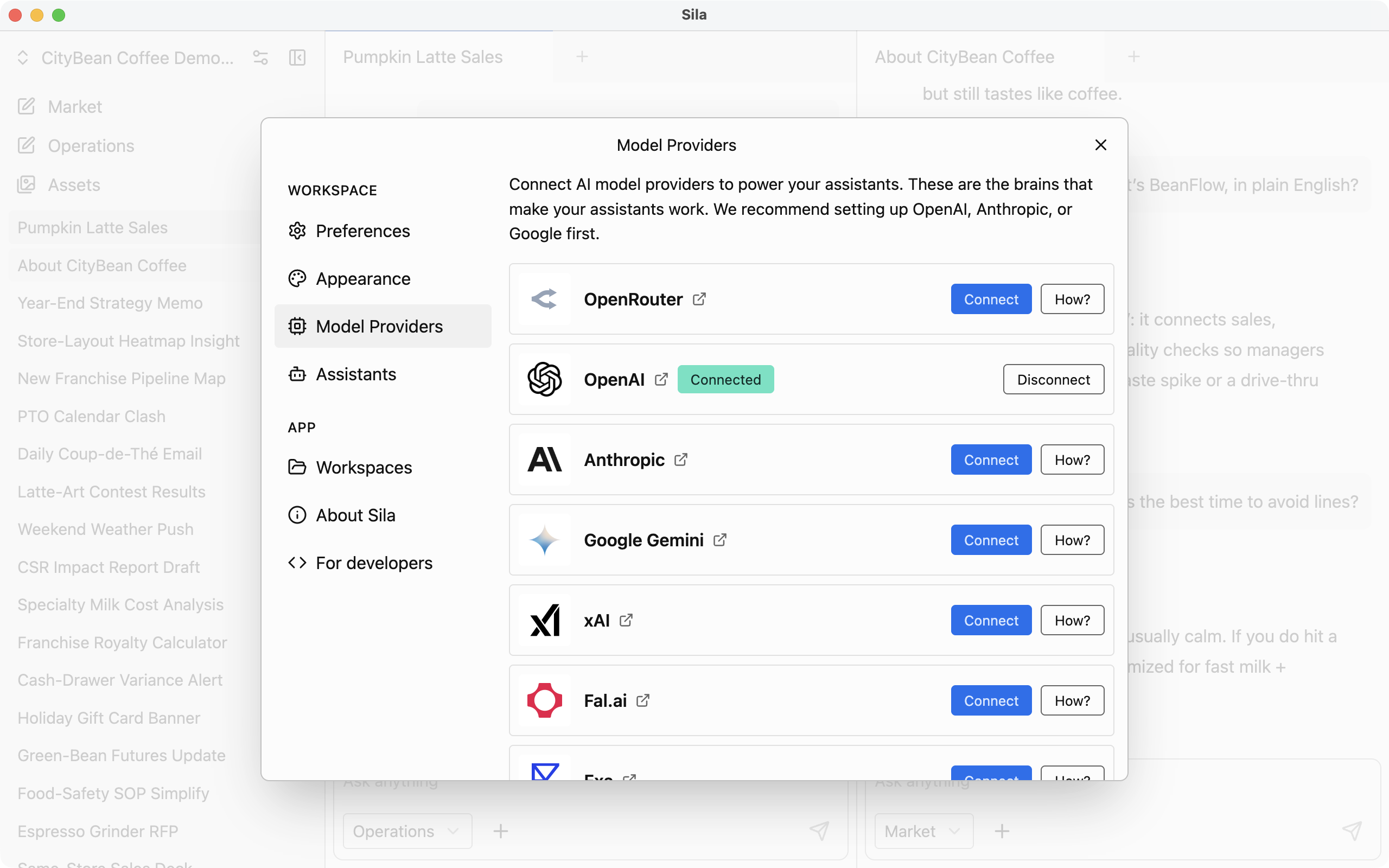

- Local-first by default
Sila was built to run without a server. Everything happens on your machine, so your data stays private and available even without an internet connection. This local-first setup keeps responses fast and lets you run local models for offline inference when you need it.
- Tabs and tiles
Sila lets you work across multiple conversations with tabs and split tiles — similar to VSCode and modern browsers.
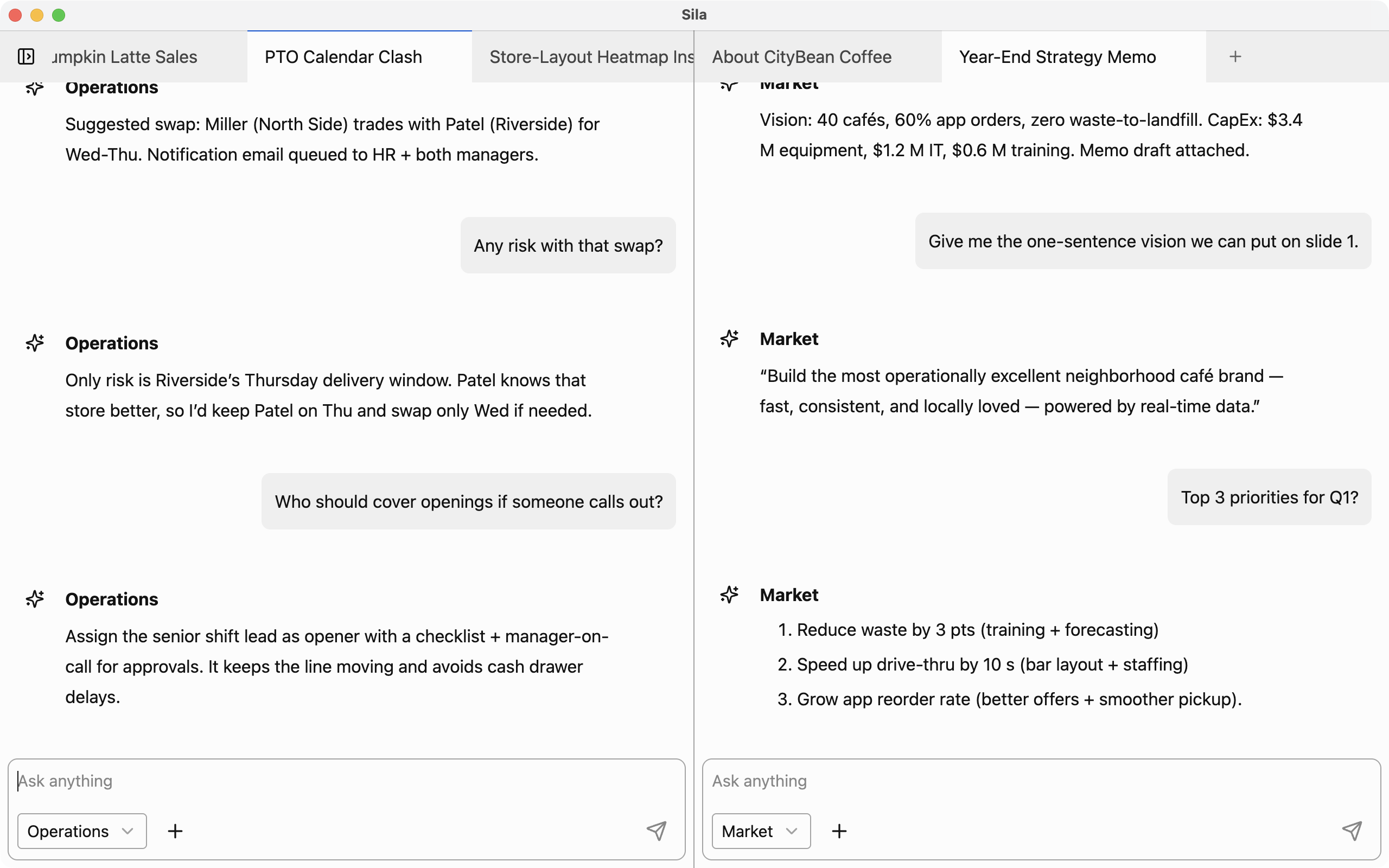

- Themes
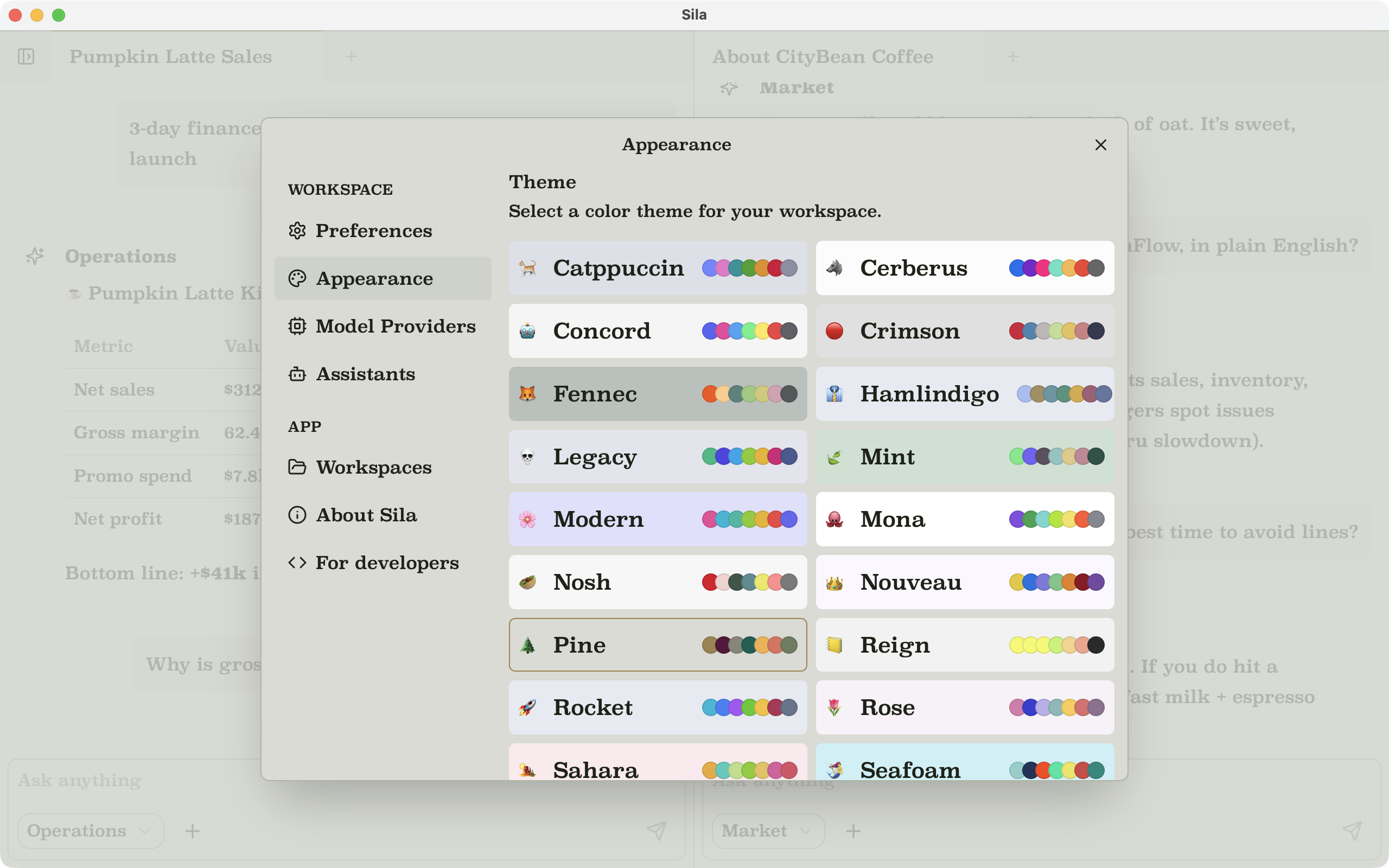
Sila includes many visual themes so you can set the mood for each workspace. Themes affect colors, surfaces, and components across the app.